Access Solar Module

Access Solar Module

Overview

The Solar module in CrmLeaf is designed to help EPC vendors, contractors, and businesses manage the entire lifecycle of solar projects. From site creation and surveys to project tracking and maintenance, the Solar module centralizes all key workflows, improving efficiency and transparency.

Why Use the Solar Module?

With the Solar module, you can:

  • Manage multiple solar project sites in one place
  • Conduct detailed site surveys and assessments.
  • Generate estimates & BOM (Bill of Materials) for cost planning.
  • Track payment schedules linked to project milestones.
  • Plan and monitor maintenance schedules and records.
  • Streamline collaboration between teams and clients.

Accessing the Solar Module

  • Log in to CrmLeaf.
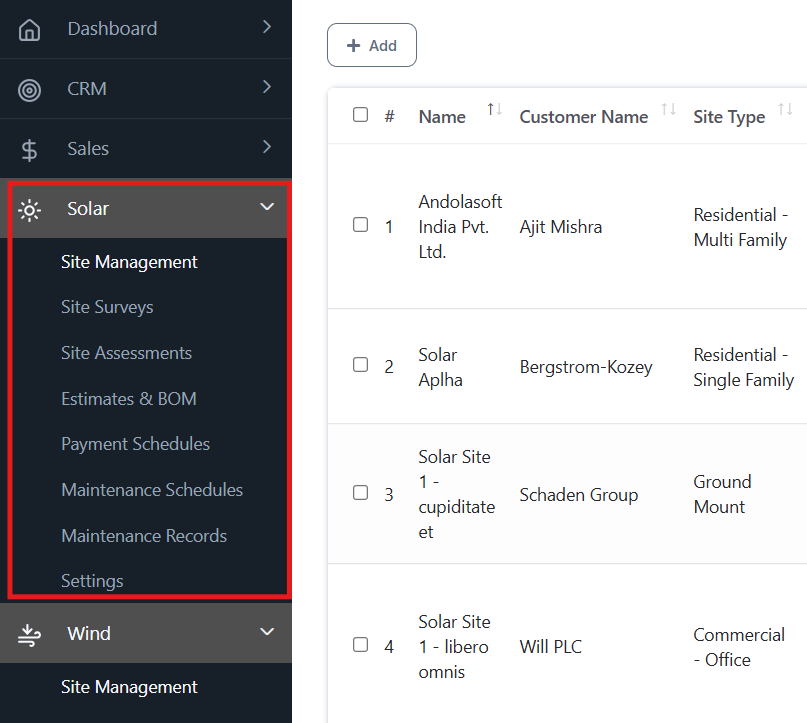
  • From the left-hand menu, expand Solar.
  • The following sub-menus are available:
    • Site Management
    • Site Surveys
    • Site Assessments
    • Estimates & BOM
    • Payment Schedules
    • Maintenance Schedules
    • Maintenance Records
    • Settings

Accessing the Solar Module

Reports & Analytics

Reports & Analytics

Generate insights across HR, finance, performance, and operations.

What You’ll Learn

  • Access built-in reports
  • Apply filters and customize views
  • Export reports for analysis

Accessing Reports

Step 1: Go to Reports → Dashboard

Interface Breakdown

  • Report Categories: Attendance, Leave, Expense, Performance, Finance
  • Filters: Department, role, date range
  • Export Options: PDF, Excel, CSV

Generating a Report

  • Select report type
  • Apply filters
  • Click Generate Report

Exporting Reports

  • Click Export
  • Choose format and fields

Mobile Usage

  • View reports on mobile
  • Use pinch-to-zoom for charts

Best Practices

  • Schedule monthly reports for leadership
  • Use filters for targeted insights

Troubleshooting

  • Report not generating → Check filters and data availability
  • Export failed → Try a smaller data range

Expense Management

Expense Management

Submit, approve, and track employee reimbursements and business claims.

What You’ll Learn

  • Submit expense claims
  • Attach receipts and notes
  • Approve or reject expenses
  • Export expense reports

Accessing Expense Management

Step 1: Go to Expenses → Expense Report

Interface Breakdown

  • Expense Table: Date, category, amount, status
  • Claim Form: Type, amount, description, attachments
  • Approval Panel: Pending claims, status updates

Submitting an Expense

  • Click Add Expense
  • Fill in:
    • Expense Type (Travel, Meals, Office Supplies)
    • Amount
    • Description
    • Upload receipt
  • Click Submit

Approving Expenses

  • HR/Finance views pending claims
  • Click Approve or Reject
  • Add comments if needed

Exporting Expense Data

  • Click Export Expense Report
  • Choose format and filters

Mobile Usage

  • Submit claims via mobile
  • Snap and upload receipts instantly

Best Practices

  • Set category limits and approval thresholds
  • Audit expenses monthly

Troubleshooting

  • Claim not submitting → Check required fields or file size
  • Approval not visible → Confirm finance role assignment

Time Tracking

Time Tracking

Log hours worked on tasks and projects using timesheets.

What You’ll Learn

  • Add and manage timesheets
  • Link time logs to tasks/projects
  • View weekly summaries
  • Export time tracking data

Accessing Time Tracking

Step 1: Go to Projects → Timesheet

Interface Breakdown

  • Timesheet Table: Task name, hours logged, date
  • Add Entry Form: Project, task, duration, notes
  • Weekly Summary: Total hours per day

Logging Time

  • Click Add Timesheet Entry
  • Select:
    • Project & Task
    • Date
    • Duration (HH: MM)
    • Notes (optional)
  • Click Save

Exporting Time Logs

  • Click Export Time Log Report
  • Choose format and filters

Mobile Usage

  • Log time via mobile
  • View weekly totals

Best Practices

  • Log time daily for accuracy
  • Link entries to tasks for billing

Troubleshooting

  • Task not listed → Check project assignment
  • Time not saving → Verify format and required fields

Leave Management

Leave Management

Request, approve, and track employee leaves with automated workflows.

What You’ll Learn

  • Apply for leave
  • Approve or reject requests
  • View leave balances and history
  • Export leave reports

Accessing Leave Management

Step 1: Go to HRMS → Leaves

Interface Breakdown

  • Leave Calendar: Upcoming and approved leaves
  • Request Form: Type, dates, reason, attachments
  • Approval Panel: Pending requests, status updates

Applying for Leave

  • Click Request Leave
  • Select:
    • Leave Type (Casual, Sick, Earned)
    • Start & End Date
    • Reason
  • Attach documents (if required)
  • Click Submit

Approving Leaves

  • HR/Manager views pending requests
  • Click Approve or Reject
  • Add comments if needed

Exporting Leave Data

  • Click Export Leave Report
  • Choose format and filters

Mobile Usage

  • Apply and approve via mobile
  • View balances and history

Best Practices

  • Set approval workflows by role
  • Monitor leave trends for planning

Troubleshooting

  • Leave not submitting → Check date range or balance
  • Approval not visible → Confirm manager assignment

Attendance Management

Attendance Management

CRMLeaf’s Additional Features module includes essential tools for workforce tracking, leave approvals, time logging, expense claims, and organization-wide reporting. These features support HR, finance, and operations teams with real-time visibility and control.

User Guide: Attendance Management

Track employee attendance, shift schedules, and clock-in/out records.

What You’ll Learn

  • Access attendance logs
  • View daily, weekly, and monthly records
  • Filter by employee, department, or date
  • Export attendance data
  • Troubleshoot clock-in issues

Accessing Attendance

Step 1: Go to HRMS → Attendance

Interface Breakdown

  • Calendar View: Daily clock-in/out status
  • Table View: Employee name, shift, in/out time, total hours
  • Filters: Department, date range, status

Actions

  • View individual attendance
  • Approve or correct entries (HR/Admin only)
  • Export logs as Excel or PDF

Mobile Usage

  • Employees can clock in/out via mobile
  • Managers can view team attendance on the go

Best Practices

  • Encourage timely clock-ins
  • Use shift rosters for accurate tracking

Troubleshooting

  • Clock-in not recorded → Check device sync or permissions
  • Missing logs → Verify shift assignment